Silicon Valley Technology Commentary & Archives · Est. 2006 3,033 Posts · 2006–2026

January 23, 2009

January 23, 2009 · 4 MIN READ · BY LOUIS GRAY

Feedscrub: Cleanse The Dirt From Your RSS Feeds

Feedscrub: Cleanse The Dirt From Your RSS Feeds

By Mike Fruchter of MichaelFruchter.com (Twitter/FriendFeed)


Last week I touched upon RSS overload and how it's starting to become a problem for a lot of people. That post mainly reflected on how to get the most out of your Google Reader in terms of organization and productivity. The overload part for many, comes down to feed management. In the past I suggested unsubscribing from feeds that bring you little value, or update with too much frequency.

That eliminates the problem, but also poses the risk that you might miss something valuable mixed in with all the clutter. I recently found a better solution, which I have been testing for about 24 hours now, it's call Feedscrub.com.

What is Feedscrub?

Feedscrub is a clever filtering system for your RSS feeds. It acts as a spam filter for your RSS feeds. With this system, you train it based on your content preferences. This application now allows me to still stay subscribed to the feeds I otherwise would have unsubscribed from ages ago. I'm always weary that I will miss something of importance if I abandon the feed completely. For instance, I'm subscribed to quite a few technology blogs, so the first thing I did with Feedscrub was train it to scrub posts that have anything to do with Apple.

The training filter is like an email filter that is based off words. I'm not an Apple consumer and quite frankly I'm overwhelmed with feed after feed pertaining to Steve Job's health or the iPhone. By scrubbing the posts in my feeds that have any mention of Apple, I'm training the system with my dislikes and hopefully I will never have to see another post relating to Apple in my Google Reader.

Getting started:

Getting started with the service is pretty straight forward. You have the ability to enter up to three feeds for scrubbing. Because the service is still in beta, and they are still working out the kinks behind the scenes, three should be suffice to get you going and to take it for a test drive. My advice for you is to test the service out with your feeds that update quite often throughout the day. This will show you the power of the filtering faster compared to feeds with less frequent updates. Don't worry,for power users they offer a PRO account which gives you unlimited feeds plus OPML import & export.


After you input your selected feed for scrubbing, they are displayed and stored under the "Manage Feeds" tab in the control panel. From here, you will also see three feed reader subscribe buttons under each feed. In order to train the system, you must subscribe to the Feedscrub feeds, replacing the original one in your feed reader. Here is what the Feedscrub feed looks like. It basically adds two buttons to the feed, one called "scrub it", the other called "save it". These are what you will use to train the system. If you like the article of content on the feed, you click save it, dislike it, click scrub it. Simple enough.

Training is not limited to the Feedscrub site:

You can train the system a variety of ways. When logged into the control panel you can click the corresponding feed. That will launch a new window with the feed as outlined in the below screen shot. The save it and scrub it buttons are located on the feed. Train away!


Power users will prefer training inside the comfort of Google Reader:

If you are using Google Reader, the feeds that you have selected for scrubbing, appear with the save it, and scrub it buttons. This is how I'm currently training the system. It's handy and convenient, and what better place for them to appear than in your RSS vehicle. This makes it even easier to train the system. Once you have your selected feeds into the Feedscrub system, you will not have to be logged into the control panel often to train and filter your feeds.


That concludes part one of a two-part post:

In order for me to give a fair review of the application, 24 hours was not enough time for me to make a full assessment of the filtering system. Feedscrub was courteous enough to supply me with a PRO account for testing purposes. I unloaded some 600+ feeds into the system last night, so it was a time consuming process. Out of the 600+ feeds, I'm selecting approx 50 of them for scrubbing. One week should be ample time to train the filters, and the data set should be rather interesting. I will share the results of my findings in about a weeks time.

Take the service for a test drive. We have beta invites!

Feedscrub graciously supplied us with 150 beta invites. These will go fast. Don't hesitate to sign up. Use invite code "louisgray" at the sign up process.

Read more by Mike Fruchter at MichaelFruchter.com.

January 22, 2009

January 22, 2009 · 4 MIN READ · BY LOUIS GRAY

Our Doings: You Upload The Moment, They Organize It By Date

Our Doings: You Upload The Moment, They Organize It By Date

By Mike Fruchter of MichaelFruchter.com (Twitter/FriendFeed)

Our Doings is a simple and unique photo sharing service. While it may not have the lengthy feature set and large community of a Flickr or Picasa, that's okay, as it's primarily a much smaller operation, and the feature set built into the service leaves it standing in a league of its own, in my opinion.

Getting started with Our Doings takes less then five minutes. Once you register for an account, you have the option of creating a custom URL for your photos, such as the one I created for testing purposes, or you can let the system automatically generate one for you. Both URLs can be viewed by the public. The key difference is the indexing option, which you can select on or off. If you select "no indexing", search engines are advised not to index your URL.


Uploading is made easy. Give it everything you can throw at it!


The service gives you a multitude of ways to send photos into the system.
  • e-mail to publish
  • Web Publishing Wizard lets you upload straight from Windows XP or Vista
  • Picasa photo albums button
  • Web form to upload individual photos
  • Ability to upload a zip archive of up to 100MB
Why do I like this service so much? Automatic organization of your photos by date!

While the service has plenty of nook and crannies, this is by far the best feature yet. There is not one service out there that I could find that automatically organizes and sorts your photos by date. This is not a feature currently offered by any of the other major photo sharing services currently on the market.


For someone like me, who is not meticulous with organizing my photos, this feature is a godsend. I have dozens of folders on my desktop with random images taken at any given time. The images from a specific occasion in time, such as a birthday party or wedding are easy to organize. It's simply a matter of creating a photo album titled "someones wedding" and dumping all the correlating images into that album. The other hundreds of photos are taken on random occasions, random days and so forth. Most recently, with the birth of my daughter, my wife or I will grab the camera at any given time to capture that perfect Kodak moment of our daughter doing something that warrants a digital snap. It's these Kodak moments that I specifically would like to know the day that it had happened and reflected on the photo album. Now with this service, I can begin to upload the hundreds of images that I have stored on my desktop, and have them chronologically organized by the date that they were taken. This core feature will keep me using the service hands down.

It gets better. Site integration with your favorite Web 2.0 services:


Ourdoings.com offers integration with a lot of the popular Web 2.0 services, such as Disqus. Oh, and did you see FriendFeed is on that list too? They implemented SUP, which means if you configure it for FriendFeed, your images will appear on the site in real time. I configured mine to import my images into FriendFeed, you can see my feed here. It took no longer than 15 seconds for the images to import onto my feed. Without the implementation of SUP, you would be waiting anywhere from 30 minutes to an hour for photos from other photo sharing services to import into FriendFeed. You could always uses the manual refresh link, but that defeats the whole purpose.

You also get a Media RSS URL for all of your photo albums:

Media RSS is a special type of RSS feed that contains rich media assets like video, audio and imagery. Many media sharing and news sites publish content using Media RSS. This is an added bonus, and one feature I'm sure the bigger competitors in the space do not currently offer. Do you have a wireless photo frame? Without getting too technical, it solves the nagging problem of photo orientation.This explains it in more depth. This is something I will use for my wireless photo frame that I have been eyeing for purchase for some time now.

In closing:
I'm thoroughly impressed with this service. It's the simplicity of it, along with the automatic organization of my photos by date, that has sold me. I don't need all the fancy bells and whistles that some of the other bigger name services offer. I have a Picasa account that suits me just fine as a backup. Will this be a replacement for Picasa? It's strongly looking like it. I have not made the switch yet, as I only have tested the service out for less than an hour or so. I would like to see some photo editing features such as cropping and red eye reduction added, but in the meantime this service is something worth looking into.

Read more by Mike Fruchter at MichaelFruchter.com.
January 22, 2009 · 2 MIN READ · BY LOUIS GRAY

Feedly Mini Adds Buzz to Browsing, Goes Beyond Google Reader

Feedly Mini Adds Buzz to Browsing, Goes Beyond Google Reader

By Phil Glockner of Scribkin (FriendFeed/Twitter)

Feedly has announced a new feature today, the latest in a series of mostly behind-the-scenes refinements and improvements to Google Reader companion service which launched back in June. The new feature is intriguing, as it can appear on any web page that has a corresponding URL to one found in your Google Reader list.

It's called Feedly Mini. And while it's small, it's a big deal.

Technically, a feature similar to this was tested out before, in the form of a dark sidebar (mentioned here). But this new iteration is lighter, faster, and in my opinion, much cooler.

Feedly MiniHere you can see the new mini bar in action, on a recent post here on this blog. The default configuration is for the mini bar to only appear on URLs that are also in your Google Reader blog and 'hot topics' on FriendFeed and and Digg, but you will be able to use the Feedly preferences settings to change the scope later.

As you can see, the Feedly Mini bar has three main areas:
  1. A status area that shows how many times the article has been shared on Google Reader, shares on FriendFeed, and number of Diggs. And yes, that's conversations on FriendFeed, not comments. I checked.
  2. An area to add a note, just like you can when sharing an article in Google Reader.
  3. Action links to perform on the current article. You can share, save for later (or star), or hide the post in Feedly.
Next BookmarkletThis feature reminds me a lot of the much more rudimentary feature in Google Reader where you could use a bookmarklet to navigate to the next article in your subscription list. However, Feedly Mini throws in some great buzz numbers and the ability to share with a comment.

In fact, you could probably use these two technologies together! In theory, if you use the next bookmarklet, Feedly Mini will pop up on each article, allowing additional options. Nice! You can find the next bookmarklet in the goodies tab of Google Reader's settings area.

If you're not already checking out Feedly, and you're a Firefox user, you owe it to yourself to see what Edwin and team are doing in the world of feeds and content discovery. Check out Feedly at http://www.feedly.com.

Read more by Phil Glockner at Scribkin.com.
January 22, 2009 · 3 MIN READ · BY LOUIS GRAY

Plinky Launches With Prompts to Spur Stuck Bloggers

Plinky Launches With Prompts to Spur Stuck Bloggers

Starting a blog can be daunting for a lot of people. Jason Shellen, a key member of the original team that started Blogger, says that many people easily get disenchanted, asking "what do I do?", when viewing a blank page. His new service, Plinky, launches today, with hooks that not only help to connect friends, like many other social media tools, but also help to provide new discussion points, with an engaging tool called "prompts".
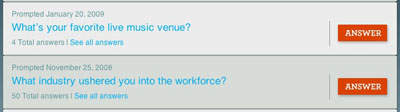
I spoke with Shellen today, in advance of this afternoon's launch, and he said he felt that while many different social media tools have focused on aggregation and developing rich media, less attention has been spent on the creation experience itself. As a result, many of these services have grown outside of the mainstream, limiting their potential market.

"I didn't think for the average user, there was really much work being done," Shellen said. "We wanted to develop something that was really fun, and I wanted to see answers to things I wanted to know from my friends. Plinky is to inspire people, and make them create content and look good doing it."


You Can Answer Plinky's Multiple Choice Questions


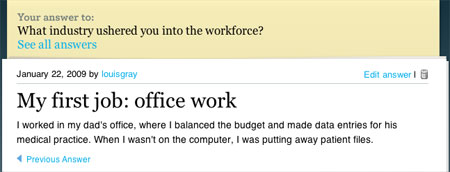
An Example Answer from Me On My First Paycheck

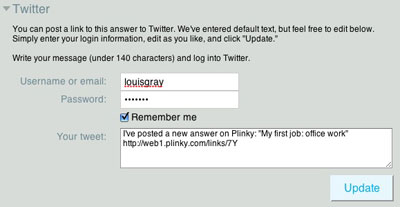
One of the quickest routes to creating interesting content through Plinky is answering one of the prompts, seen on the front page of the site. When you answer one of the prompts on Plinky, your answer is shown alongside other users of the service, and you can send the data out to any of third party services the product supports on day one - ranging from Blogger, to Twitter and Facebook, for starters.


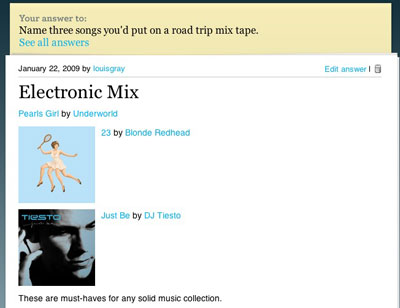
Plinky Grabs Album Data from Amazon for My Mix Tape


I Can Send My Plinky Notifications to Twitter or Facebook

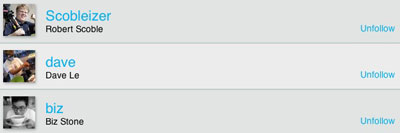
Plinky, which is starting off with a team of seven, based in Lafayette in the East Bay, also features many of the friend connection aspects you have seen in other products. You can browse all the users of the site, and choose to follow them, like making friends or followers in Twitter, FriendFeed and Facebook. By following them, you can go to the drop-down of Answers and see "Followed Answers", giving you all the answers to prompts from those friends you following on Plinky.


I Can Choose to Follow Other Plinky Users

And like Twitter, you can even make answers to prompts as your favorites. So if a friend of yours says he has an awesome answer to songs he would keep on his mix tape, one of the prompts this week, you can click Favorite and see it in your favorites list.

If you think you are a social media guru and power user, or you're one of those bloggers who is posting stuff every day, Plinky might seem a little light for you, but for the much larger audience who gets writers' block and can go weeks without updating their blog, or maybe they posted a picture of their kid once and never came back, after sending a mass e-mail to their friends and family, Plinky is a fun way to get re-engaged with new ideas, as you answer prompts, see what other friends have said to the same questions, and can pass that data out to the rest of your online presence.

In a world of social media when so many things are about how many places you're signed up and everything you're doing, Plinky gets back and focuses on the social. Now, I just might find out whether you change clothes when you get home, what your favorite venue is to catch a concert and how you got started in your career. You can, as always, find me with the ID of "louisgray", here: http://www.plinky.com/people/louisgray.