Silicon Valley Technology Commentary & Archives · Est. 2006 3,034 Posts · 2006–2026

May 18, 2008

May 18, 2008 · 2 MIN READ · BY LOUIS GRAY

LetsProve Debuts Open Two-Way Lifestream Platform, API

LetsProve Debuts Open Two-Way Lifestream Platform, API

The lifestreaming market is a crowded one, with each new service differentiating itself through design, customizability, ability to enable conversations, or engage community. A new entrant to the space, called LetsProve, offers developers the ability to connect their own services to the site, and offers more than just a coagulation of friends activities, also enabling popular sites to update you within the feed, much like RSS.

LetsProve is founded by Peerapong Pulpipatnan, a 24 year-old from Bangkok, Thailand. Initially aimed at being a site for people to give visual updates on their location, similar to Twitter, Pulpipatnan expanded LetsProve to record all of a person's activity online, capturing updates from disparate Web services, like Twitter, Del.icio.us, Digg, Google Reader shared items and blogs. Now, featuring the core elements seen on many lifestreaming apps out there, LetsProve is opening up to users, hoping they'll use the site to share their activities, to connect with friends, and join groups.
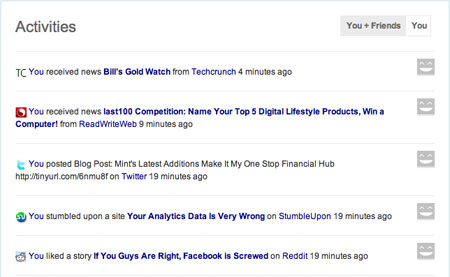

One LetsProve feed of activity, prior to adding friends.
(Note the updates from ReadWriteWeb, TechCrunch)

There are a few interesting wrinkles to LetsProve on day one.

While it's not uncommon to offer updates to your feed from our own activity and that of your friends, some of the default applications you can add to your LetsProve feed are popular tech blogs, including TechCrunch, ReadWriteWeb, Engadget and VentureBeat. In theory, by adding these applications, you could stay in LetsProve and have the news come to you, rather than jumping to an external RSS feed reader, or waiting for a friend to share it in their Google Reader shared items.

Also, LetsProve offers syndication with your Twitter account, so that updates to your LetsProve feed can be posted as Direct Messages (DMs) directly to you.
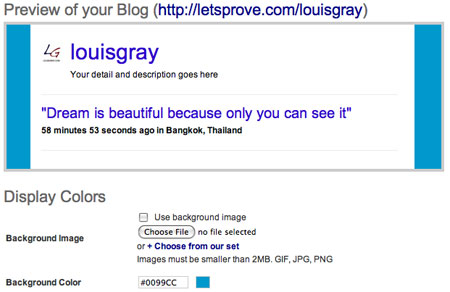

I can customize my LetsProve feed.

Unlike many other lifestreaming services, LetsProve also offers an extremely customizable user interface. Users can do more than just select an avatar. They can pick a background image for their feed, or edit background, link and font colors, making the LetsProve stream unique to each individual.
Beyond the basic lifestreaming capabilities, LetsProve is also thinking ahead. At launch, LetsProve offers a platform which the site says "enables anyone to build applications that can update your activites from exeternal services, and send notifications." Think there are users on the site who would like to tap into your content? LetsProve has already developed an API in beta to make this happen. (See the Developers Page)

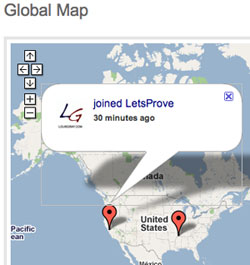
Additionally, you can find other users of LetsProve by importing friends from your Webmail accounts, inviting users from the site, or even clicking on the "Maps" tab, letting you see if there are any users in your geographic area.

What LetsProve doesn't offer today is the kind of interactivity through comments and direct sharing to the feed common on other popular sites, but considering its early stage and humble beginnings, it could be quite interesting to watch. You can find my LetsProve blog at http://letsprove.com/louisgray.

May 18, 2008 · 3 MIN READ · BY LOUIS GRAY

Mint's Latest Additions Make It My One Stop Financial Hub

Mint's Latest Additions Make It My One Stop Financial Hub

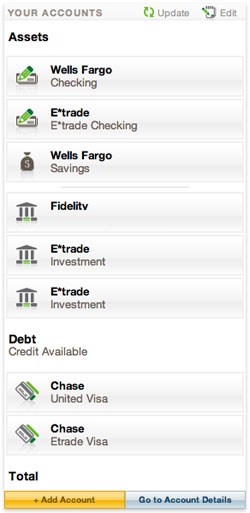
For years, I've manually edited a custom portfolio in Yahoo! Finance in an attempt to track all my financial details in a single place. That meant copying and pasting trade details from eTrade and checking in with Fidelity every two weeks to get an update from my 401k. But even then, it wouldn't have bank data from Wells Fargo, or credit card debts, so I haven't had a perfect picture on a single page - until now. With the addition of investment tracking capabilities at the end of April, Mint has now morphed from a simple curiosity to becoming my long sought after single point for financial details.
Mint came to my attention last year, like it did for many people, when it won the best presenting company award at the inaugural TechCrunch40 event.
While some have said storing financial login data on a 3rd party site makes them nervous, I've always erred on the side of trusting the Web, and I registered right away. But site slowness, and Mint's initially not offering support for my investment accounts at eTrade and Fidelity meant it wasn't all that useful for me. I wasn't interested in following their little tips on how to save a few bucks here and there by switching my bank or credit cards, so I largely left my account dormant.

But now, Mint shows me everything in one place. After synchronizing my Checking and Savings accounts, my investments and my credit cards, I now get a perfect picture of available funds. And Mint, having more than 200 days history of my activity since I first signed up, also has some educated guesses on where I spend my money most frequently, trends on whether I'm spending more than others in my geographic area, and even records of which vendors.

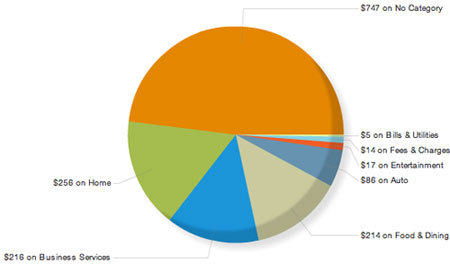
Now, according to Mint, I can see I've spent $155 on iTunes since October 1st of last year, in 16 different purchases, I've spent $798 at Safeway in 9 tracked purchases, and $332 at Chevron in the same number of visits. Of course, with more than 1/3 of my spending being marked as "No Category", I have some work to do to get the data even better, and there are some amusing bugs, like the one showing I've spent $6,891 at "Louis Shoe Shop", in four transactions. My guess is that's supposed to be where I've made credit card payments, and I have no idea why it's called "Louis Shoe Shop". Are they confusing me with Imelda Marcos?


One month's financial tracking within Mint.

Regardless of those rare oddities, the simple fact that Mint shows me all my activity in one place means that I don't have to go to each of the individual financial sites to get my data. On occasion in the past, I've gotten hit with late fees on my credit card just because I had forgotten to log in before the bills were due. Now, if I can just log in to Mint instead, I can not only see when money comes in, but when money needs to go out. And I'm done messing around with Yahoo! Finance, manually entering owned shares data and estimated per share costs. Now, Mint does all the hard work for me. It's the way Web finance tracking was supposed to be.

May 17, 2008

May 17, 2008 · 1 MIN READ · BY LOUIS GRAY

RSSMeme Creator Launches Tweet2Tweet to Watch Twitter Discussion

RSSMeme Creator Launches Tweet2Tweet to Watch Twitter Discussion

The rapid-fire element of Twitter can absolutely obliterate any resemblance of a tidy conversation, as updates from a wide array of disparate users will interrupt the discussion between one or more people, especially if the conversation takes place over a little bit of time, rather than seeing second by second updates common on IRC or other chat rooms.

Benjamin Golub, the developer behind the popular Google Reader shared links aggregator RSSMeme, debuted a solution called Tweet2Tweet today, which lets you search on any two Twitter user IDs, and pull up their discussion, even if the Tweets ended up only being one-way.


Tweet2Tweet's query interface

The data, powered by Summize, which is growing on me as a must-visit tool multiple times a day to query for specific terms I track, shows in a two-column format:

* Who initiated the conversation
* The full content of each Tweet.
* The timing of each Tweet, including a link.
* The in-line response from the second participant.

Now, instead of hitting the Twitter "Replies" tab to see what people have said in response to your notes, or hitting the "Conversation" tab in Summize to see just one exchange, you can now see all exchanges between two people, over the available period in Tweet2Tweet's database.

A few good examples:

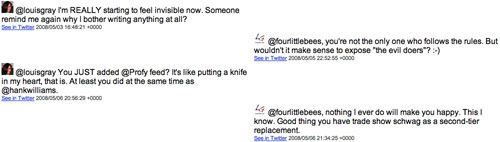
Tweet2Tweet: @louisgray and @fourlittlebees
Tweet2Tweet: @loiclemeur and @centernetworks


A quick look at some of my conversations with @fourlittlebees

Having just launched today, Tweet2Tweet will undoubtedly see the same level of improvements that RSSMeme has enjoyed over the last several months. In my testing, I would occasionally see only one half of a conversation, or find empty results, especially when querying the most-active Twitter users. But it's a start, and a good one at that. Corvida of SheGeeks also looked at it earlier today and found it to be much like Facebook's Wall to Wall feature.

May 16, 2008

May 16, 2008 · 5 MIN READ · BY LOUIS GRAY

FriendFeed Friday Tips #1: Five Ways To Use the Hide Function

FriendFeed Friday Tips #1: Five Ways To Use the Hide Function

By popular demand, I've been asked by other FriendFeed users to highlight how I use the popular social lifestreaming site. The first, and most requested topic, is how to best use the "Hide" function. With any luck, you can expect a new "FriendFeed Friday" post for a few weeks, until the point of diminishing returns is reached.

FriendFeed lets its thousands of users stream live updates from more than 30 services, including Twitter, YouTube, blogs, Flickr and many others, aggregating them all into a single, busy, feed.

Making sense of those updates, and separating the signal from the noise is critical for a positive FriendFeed experience. Luckily, the FriendFeed team has built a number of ways for you to cope, all hidden behind a simple option: "Hide".


An example of a FriendFeed entry, with 4 options.

Today, each item contains four options, including "Comment", "Like", "Hide" and "More". But "Hide" has many options, as outlined below:

1. Use Hide to Hide Individual Entries

Sometimes, a popular item can get a lot of comments. Each time a new comment is added, the item gets "bumped" to the top of your FriendFeed, so you can see a single item again and again, with the new comments.


A recent popular FriendFeed entry.

But if you get tired of this, click "Hide", and the entry will go away. If you choose, you can "Undo" this action, or go to the bottom of the page to "Show hidden items" and reveal it again.


Click "Hide" and the entry will disappear.

2. Use Hide to Hide A Specific Service

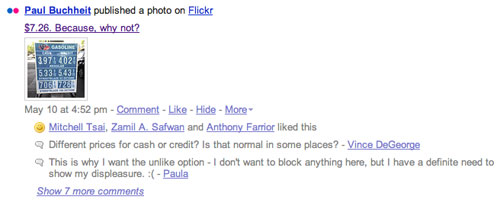
Depending on your preference, you might feel one service has more value than another. For example, you might like seeing Blog updates, but you don't want to show Twitter updates. To hide these, again, you click "Hide" below an entry from the offending service.

When you click on "Hide", text displays, saying "See options for hiding other items like this". (See above)


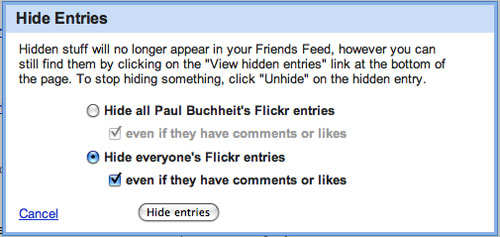
It's this easy to block all Flickr entries.

Click "See options for hiding other items like this", and the "Hide Entries" dialog will pop up. To block the service, click the button that says "Hide everyone's Twitter entries" or "Hide everyone's Flickr entries", etc., depending on the service. To fully block all updates from this service, make sure you keep the "even if they have comments or likes" box checked, or you'll still see these items if another FriendFeed user takes an action to that item.

3. Use Hide to Hide a Specific User's Service

You might not want to block all of a service's updates, but you might want to block one person's in particular. (Example: "Hide all Louis Gray's Last.fm entries.")

Follow the same method seen in #2. When you click on "Hide", click the text, "See options for hiding other items like this".


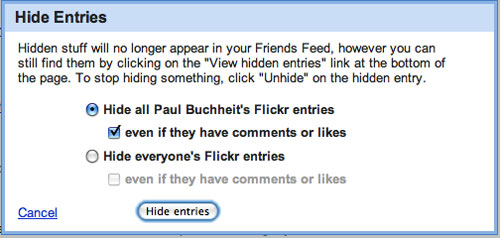
It's this easy to block Paul Buchheit's Flickr entries.

This time, keep the first button selected, that says, in this example, "Hide all Paul Buchheit's Flickr entries" and keep "even if they have comments or likes" checked.

4. Use Hide to Hide "Friends of a Friend" Updates

FriendFeed, by default, shows you items that friends of your friends posted, if your friends took action on an item, either by clicking "Like" or making a comment. Over time, with the more friends you add, and the more active they are, this can get "noisy." Again, the "Hide" item comes to the rescue.


This Twitter entry was from a Friend of A Friend.

In this case, click "Hide" and click the text, "See options for hiding other items like this".

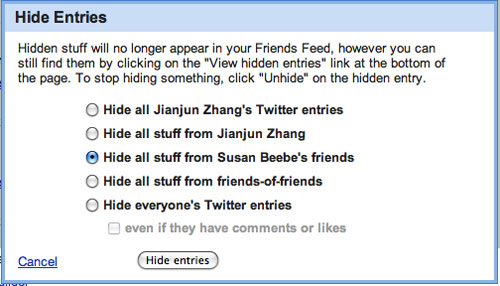
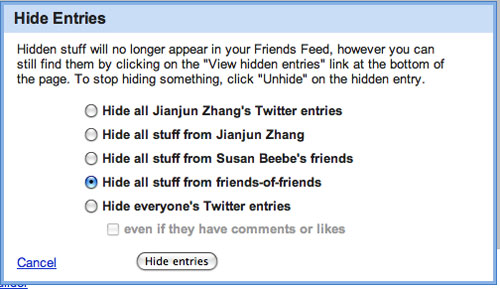
Now, in the new dialog, you have an array of options, from hiding the service from that person, to hiding all services from that person, to hiding items from a specific friend's friends, or hiding all items from all friends of friends. It sounds complicated, but it's not too much, once you start using it.


Hiding all friends of a friend via Susan Beebe.


Hiding all friends of a friend from all friends.

In the above example:
  • The first option would block all Twitter entries from Jianjun Zhang.
  • The second entry would hide all entries from Jianjun Zhang.
  • The third entry would hide all items are shown to me because Susan Beebe liked or commented on her friends' items.
  • The fourth entry would hide all items shown to me from any friends' friends.
  • The last entry would again offer what we solved in #2, blocking Twitter altogether.
5. Use Hide to Only Show Activity With Likes or Comments

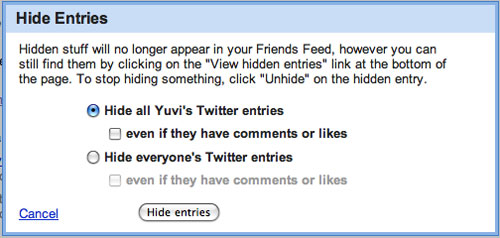
The FriendFeed firehose can be lessened by filtering out the items that haven't yet been acted on by other users. You can do this by aggressively hiding all services or all updates from specific individuals "unless they have comments or likes". If you take this step for all available services, you're essentially hoping the wisdom of crowds is a good filter (which it can be), and none of the items will hit your FriendFeed without somebody else having taken an action first.

In this case, click "Hide" on any entry and click the text, "See options for hiding other items like this".


This hides all Tweets from Yuvi, unless they have likes or comments.


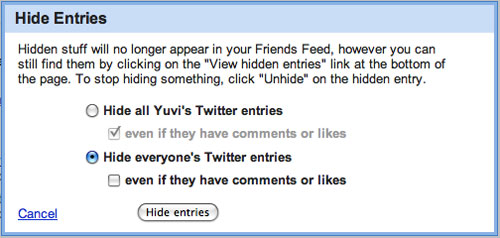
This hides all Tweets from everyone, unless they have likes or comments.

When the dialog presents itself, click the second button "Hide everyone's Twitter entries" but be sure the accompanying box "even if they have comments or likes" is unchecked. This means you won't see any Twitter updates unless someone in the FriendFeed community has taken action.

Of course, the best way to reduce noise on FriendFeed is to only sign up to your friends and peers. Randomly following industry name brands is the best way to increase activity on the site, thanks to the high number of people they follow and their rate of activity, as well as their own friends. But with aggressive use of the "Hide" function, it's pretty easy to follow hundreds of individual FriendFeed users, and to participate. But if you don't use the "Hide" key well, it can get pretty overwhelming. It's also worth noting that FriendFeedMachine honors the "Hide" choices you've made, so if you use that service, you wouldn't be subjected to seeing updates you thought you had blocked.

Do you use FriendFeed? Is there something you'd like to see featured in round two of "FriendFeed Friday" tips? Let me know.